How to Save Instagram Photos, Videos and Reels
Save public Instagram photos, videos, Reels and carousel items without logging in. Available files depend on the parsing result.
Updated: 2026-02-01
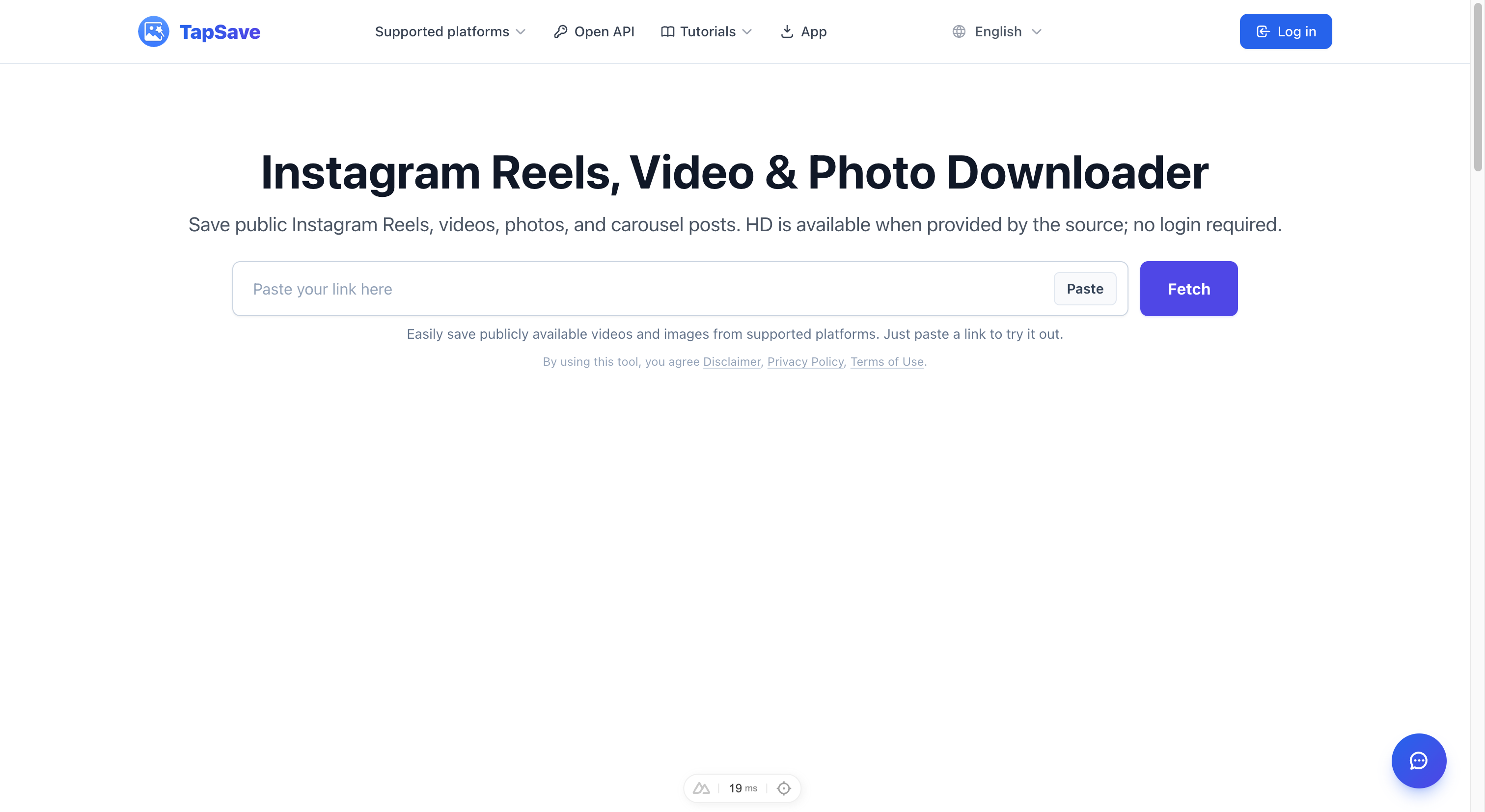
How to Save Instagram Photos and Videos
Instagram doesn't let you save posts directly to your device (except your own content). TapSave helps you save public Instagram photos, videos, Reels, and carousel items.
Supported Instagram Content
- 📷 Photos — single images and albums (carousels)
- 🎬 Videos — standard video posts
- 🎞️ Reels — short vertical videos
How to Download Instagram Posts (Photos & Videos)
Step 1 — Find the Post on Instagram
Open Instagram on your phone or go to instagram.com on your browser.
Step 2 — Copy the Post Link
On mobile:
- Tap the three dots (⋯) on the post.
- Tap Copy Link.
On desktop:
- Click the three dots on the post.
- Select Copy Link.
Step 3 — Paste on TapSave
- Go to TapSave Instagram Downloader.
- Paste the link into the input box.
- Click Fetch.
Step 4 — Save Your Content
TapSave will display all media in the post:
- For a single photo/video, click Download.
- For an album (carousel), each photo/video is listed separately. Click Download on each one, or use Package Download to save all at once.
How to Download Instagram Reels
Reels work the same as regular posts:
- Open the Reel in Instagram.
- Tap Share (paper plane icon) → Copy Link.
- Paste on TapSave and download.
Supported public Reels can be saved without platform watermarks. Available files and quality depend on the source post and parsing result.
Frequently Asked Questions
Q: Do I need to log in to Instagram to use TapSave?
A: You don't need an Instagram account to use TapSave. Simply paste the public post link and download.
Q: Can I download from private accounts?
A: No. TapSave can only access public content. Private account content is not accessible.
Q: The video downloaded without sound — why?
A: Some Instagram videos use copyrighted music that may be restricted. If the original video has audio, check if the sound was muted by Instagram's licensing system.
Q: Where is the downloaded file saved?
A: On desktop — your browser's downloads folder. On mobile — check the Files app.
Try it now at the Instagram Photo & Video Downloader →